1. Install ALS
Overview
Section titled “Overview”This page prepares your Unreal project for ALS-Refactored.
By the end of this guide, you should have:
- the
ALS-Refactoredplugin inside your project - the plugin compiled successfully for your local Unreal version
- Unreal opening the project without ALS build errors
- ALS plugin content visible in the editor
This guide only covers plugin setup. It does not cover retargeting or character replacement yet.
Before You Start
Section titled “Before You Start”ALS-Refactored is a C++ Unreal plugin. Even if your project is mostly Blueprint-based, Unreal still needs C++ build tools to compile the plugin.
This guide assumes:
- you are on Windows
- you already have an Unreal project created
- you are using Unreal Engine 5.7
- you want to install ALS as a project plugin inside
YourProject/Plugins/
If you are using another Unreal version, this guide may not work exactly as written.
Requirements
Section titled “Requirements”1. Visual Studio 2022
Section titled “1. Visual Studio 2022”Unreal Engine uses Microsoft’s MSVC compiler and the Windows SDK to build C++ plugins. VS Code alone is not enough for this step because it does not include the compiler toolchain Unreal needs.
Download: Visual Studio 2022 Community Edition
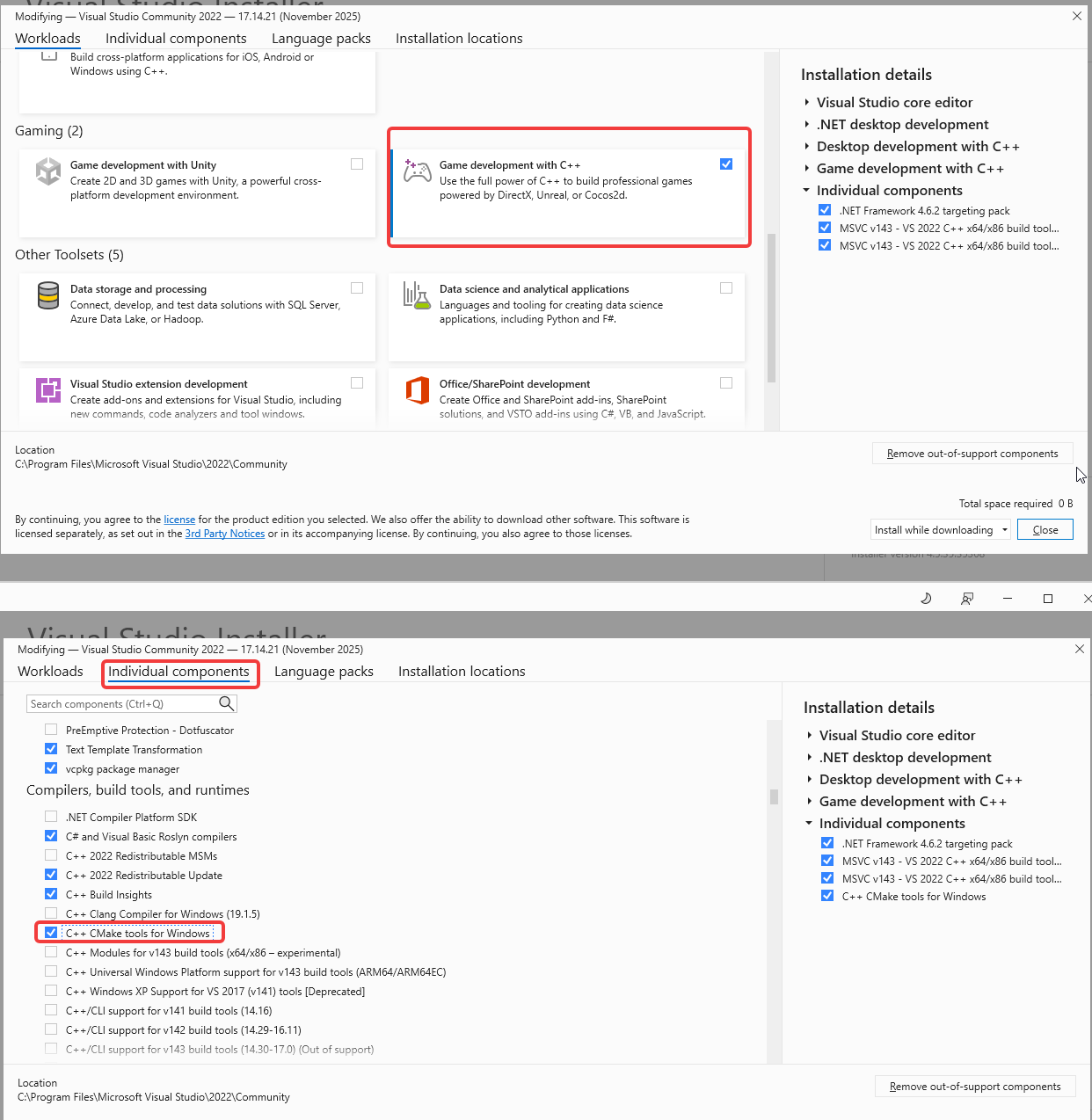
During installation, select:
Desktop development with C++
Under that workload, make sure these components are installed:
MSVC v143 - VS 2022 C++ x64/x86 build toolsWindows 10 SDKorWindows 11 SDK
2. Unreal Engine 5.7
Section titled “2. Unreal Engine 5.7”This guide is written for Unreal Engine 5.7 because the ALS version used here expects that engine version.
Install Unreal Engine through the Epic Games Launcher if possible. That is the easiest option for beginners and usually gives Unreal’s build scripts the engine registration they expect.
3. Git (Optional)
Section titled “3. Git (Optional)”You only need Git if you want to clone the repository directly.
If you do not use Git, downloading the ZIP from GitHub is completely fine.
1. Create a Plugins Folder in Your Project
Section titled “1. Create a Plugins Folder in Your Project”Open your Unreal project folder. If it does not already contain a Plugins folder, create one.
Expected structure:
YourProject/ Plugins/Example:
D:\Projects\Unreal\ALSX2\ Plugins\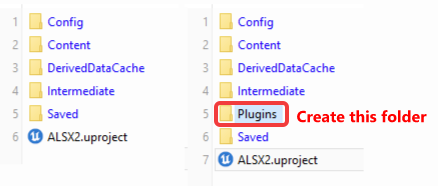
2. Download ALS-Refactored
Section titled “2. Download ALS-Refactored”You can install ALS-Refactored in one of two ways.
Option A: Download the ZIP from GitHub
Section titled “Option A: Download the ZIP from GitHub”Download the repository ZIP from GitHub.
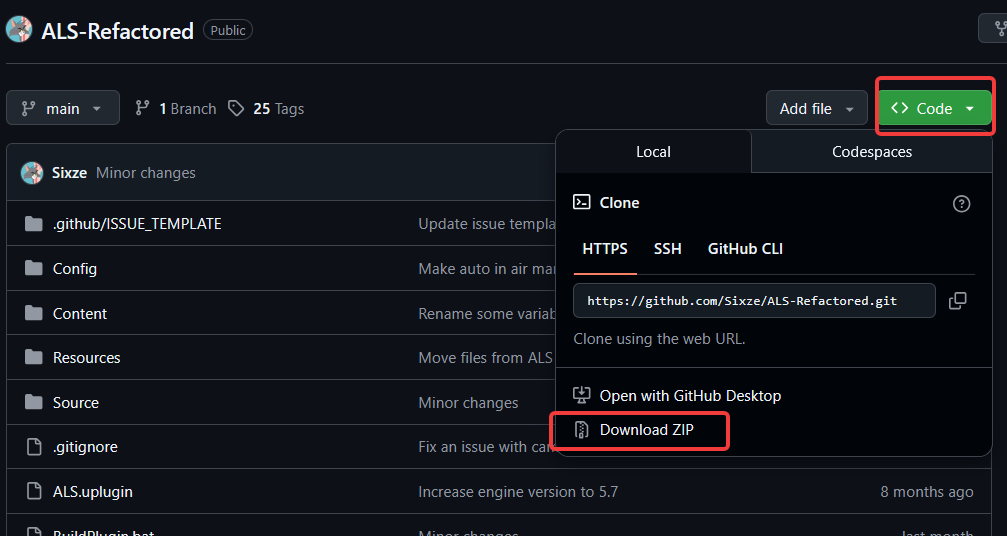
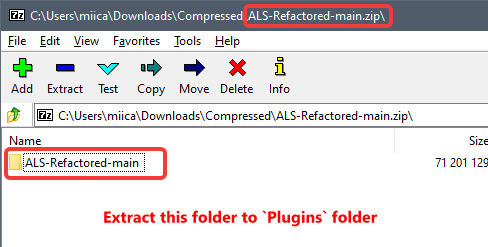
Extract it into your project’s Plugins folder.
If the extracted folder is named something like ALS-Refactored-main, rename it to:
ALS-RefactoredAfter extraction, this file should exist at this exact level:
YourProject/Plugins/ALS-Refactored/ALS.upluginThat check is important. If ALS.uplugin is buried inside another nested folder, Unreal may not detect the plugin correctly.
Option B: Clone with Git
Section titled “Option B: Clone with Git”If Git is installed, open a terminal inside your project’s Plugins folder and run:
cd D:\Projects\Unreal\ALSX2\Pluginsgit clone https://github.com/Sixze/ALS-Refactored ALS-RefactoredWhen the clone finishes, you should have:
YourProject/Plugins/ALS-Refactored3. Build the Plugin
Section titled “3. Build the Plugin”Inside YourProject/Plugins/ALS-Refactored, run:
.\BuildPlugin.batThis script uses Unreal’s build tools to:
- create a temporary host project
- compile the ALS plugin
- package the plugin output into a
Buildfolder
Depending on your machine, the first build may take a few minutes.
What the Build Script Expects
Section titled “What the Build Script Expects”For the build to work, you usually need:
- Unreal Engine 5.7 installed
- Visual Studio 2022 with C++ build tools
- Windows SDK installed
If one of those is missing, the build usually fails before packaging finishes.
What Success Looks Like
Section titled “What Success Looks Like”A successful build usually ends with output similar to:
BUILD SUCCESSFULAutomationTool exiting with ExitCode=0 (Success)You should also see a Build folder created inside:
YourProject/Plugins/ALS-Refactored/BuildAbout the Registry Warning
Section titled “About the Registry Warning”You may see a message like this at the start of the build:
ERROR: The system was unable to find the specified registry key or value.That message can look alarming, but by itself it does not always mean the build failed. In the sample build log, Unreal still found the engine path and the build completed successfully afterward.
What matters is the final result:
- if the log ends with
BUILD SUCCESSFUL, the plugin built correctly - if the script stops early or never reaches packaging, then you need to troubleshoot the setup
4. Copy the Compiled Output
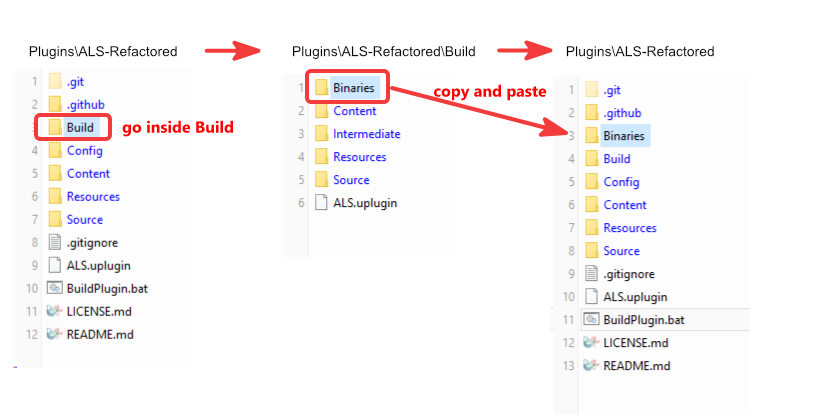
Section titled “4. Copy the Compiled Output”After the build finishes, copy the generated plugin binaries from the packaged build output back into your project plugin folder.
At minimum, you want the compiled Binaries folder available under:
YourProject/Plugins/ALS-Refactored/BinariesIf Unreal is currently open, close it before copying files.
5. Open the Unreal Project
Section titled “5. Open the Unreal Project”Open your Unreal project normally.
The first launch after adding a compiled plugin can take a little longer than usual. Unreal may need extra time for initialization, asset discovery, or shader-related work.
6. Verify That ALS Loaded Correctly
Section titled “6. Verify That ALS Loaded Correctly”When the project opens:
- make sure Unreal does not show ALS compile errors
- confirm the ALS plugin is enabled
- confirm ALS content is visible in the Content Drawer
You should be able to see ALS plugin content after enabling plugin content visibility if needed.
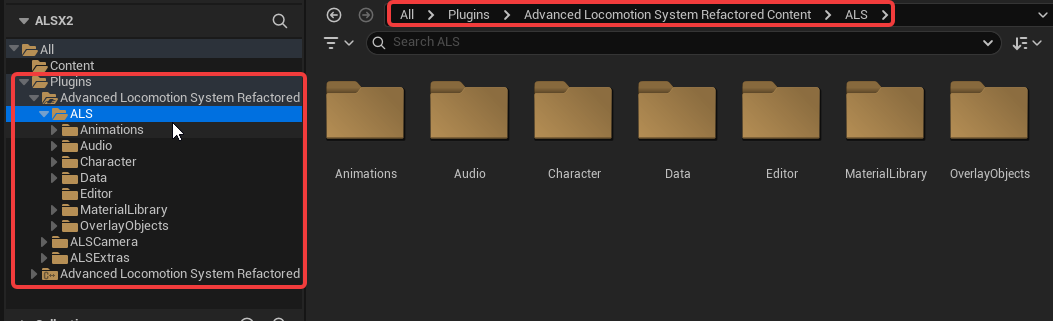
If you do not see the assets, check whether Show Plugin Content is enabled in the Content Drawer settings.
Common Problems
Section titled “Common Problems”Unreal does not detect the plugin
Section titled “Unreal does not detect the plugin”Check the folder structure first. This is the most common beginner mistake.
This is correct:
YourProject/Plugins/ALS-Refactored/ALS.upluginThis is wrong:
YourProject/Plugins/ALS-Refactored-main/ALS-Refactored/ALS.upluginBuildPlugin.bat fails immediately
Section titled “BuildPlugin.bat fails immediately”Usually this means one of these is missing:
- Visual Studio 2022
- C++ build tools
- Windows SDK
- the correct Unreal Engine version
Recheck the Requirements section before trying again.
The plugin builds, but no content appears in Unreal
Section titled “The plugin builds, but no content appears in Unreal”Make sure:
- the plugin is enabled
- Show Plugin Content is turned on
- the project opened the correct copy of the plugin
You are using a different Unreal Engine version
Section titled “You are using a different Unreal Engine version”If your project is not on Unreal Engine 5.7, the current ALS branch may not build cleanly. In that case, you may need:
- an older ALS release
- a compatible branch
- source changes for your engine version
Next Step
Section titled “Next Step”Once ALS is installed and visible in the project, you are ready to move on to character setup and integration.