ALS Refactored Structure
This page is a high-level map of the ALS-Refactored plugin. It keeps the source and asset references from the more technical version, but it also tries to explain how the pieces relate to each other while you are still learning the plugin.
The goal is to make the plugin feel less like one huge black box. By the end, you should know which systems exist, where the important assets live, and how input becomes movement, camera behavior, animation, overlay state, and replication.
Verified Plugin Context
Section titled “Verified Plugin Context”| Field | Value |
|---|---|
| Plugin | ALS-Refactored |
| Plugin version | 4.17 |
Engine version in ALS.uplugin | 5.7.0 |
| Plugin source root | Plugins/ALS-Refactored/Source/... |
| Plugin asset mount point | /ALS/... |
| Plugin descriptor | Plugins/ALS-Refactored/ALS.uplugin |
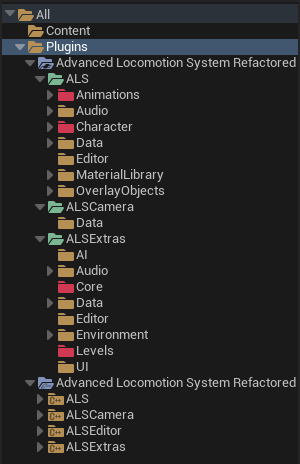
The Unreal asset paths use the plugin mount point. For example:
/ALS/ALS/Character/B_Als_Character/ALS/ALSExtras/Core/B_Als_GameModeOn disk, those assets live inside the plugin’s Content folder, but in Unreal references they appear under /ALS/....
The Short Version
Section titled “The Short Version”ALS-Refactored is easiest to read as four layers:
| Layer | Main responsibility |
|---|---|
ALS module | Core character, movement, gameplay tags, animation support, mantling, rolling, ragdolling, replication |
ALSCamera module | Custom ALS camera component and camera debug tools |
ALSExtras module | Example character wrapper, player controller, game mode, UI, sample levels, input assets |
ALSEditor module | Editor-only animation tools and editor graph nodes |
The playable example flow is:
- A map uses
B_Als_GameMode. B_Als_GameModeselectsB_Als_Characteras the default pawn.B_Als_PlayerControllercreates the sample HUD and overlay menu widgets.AAlsCharacterExamplebinds Enhanced Input actions for movement and character actions.AAlsCharacterupdates movement state, rotation, view, mantling, rolling, ragdolling, and network state.UAlsCameraComponentcalculates the final camera view.AB_Alsand its linked animation Blueprints read ALS state and blend the final pose.
1. Plugin Modules
Section titled “1. Plugin Modules”The plugin declares four modules in Plugins/ALS-Refactored/ALS.uplugin.
| Module | Type | Purpose |
|---|---|---|
ALS | Runtime | AAlsCharacter, UAlsCharacterMovementComponent, settings assets, gameplay tags, animation instance code, animation nodes, mantling, rolling, ragdolling |
ALSCamera | Runtime | UAlsCameraComponent, camera animation instance, camera settings, camera debug helpers |
ALSExtras | Runtime | Example character class, player controller, game mode, UI widgets, demo levels, AI example, Enhanced Input assets |
ALSEditor | UncookedOnly | Editor-only animation modifiers, skeleton utilities, custom animation graph editor nodes |
The plugin also enables these dependencies from ALS.uplugin:
| Plugin | Why ALS uses it |
|---|---|
ACLPlugin | Animation compression support |
AnimationModifierLibrary | Editor animation modifier support |
ControlRig | IK and pose adjustment support |
EngineCameras | Camera-related engine features |
EnhancedInput | Input actions and mapping contexts |
GameplayTagsEditor | Gameplay tag editing support |
Metasound | Audio support used by plugin content |
Niagara | Effects support used by plugin content |
PropertyAccessNode | Animation Blueprint property access support |
2. Content Layout
Section titled “2. Content Layout”The plugin content is split into two main asset groups:
| Asset root | Purpose |
|---|---|
/ALS/ALS/... | Core ALS character content: character Blueprint, animation Blueprints, input actions, settings assets, overlay objects |
/ALS/ALSExtras/... | Example/demo content: game mode, player controller, UI widgets, sample maps, AI example |
That split is worth learning early because it keeps you from wandering through the plugin blindly.
/ALS/ALS/...is where the core playable character systems live/ALS/ALSExtras/...is where the example layer lives around those systems
If you are trying to understand how ALS itself works, you will spend most of your time in /ALS/ALS/.... If you are trying to understand how the sample setup presents ALS to the player, you will keep crossing into /ALS/ALSExtras/....
Useful starting assets:
| Asset | Path |
|---|---|
| Main playable character Blueprint | /ALS/ALS/Character/B_Als_Character |
| Main character animation Blueprint | /ALS/ALS/Character/AB_Als |
| Example game mode | /ALS/ALSExtras/Core/B_Als_GameMode |
| Example player controller | /ALS/ALSExtras/Core/B_Als_PlayerController |
| Example HUD widget | /ALS/ALSExtras/UI/W_Als_Hud |
| Overlay mode menu widget | /ALS/ALSExtras/UI/W_Als_OverlayModeMenu |
| Default input mapping context | /ALS/ALS/Data/Input/IMC_Als_Default |
| UI input mapping context | /ALS/ALSExtras/Data/Input/IMC_Als_UI |
3. Maps and GameMode Entry Points
Section titled “3. Maps and GameMode Entry Points”ALS-Refactored ships sample levels inside the plugin:
| Map | Path |
|---|---|
| Playground map | /ALS/ALSExtras/Levels/L_Als_Playground |
| Grid test map | /ALS/ALSExtras/Levels/L_Als_Grid |
The example game mode is:
/ALS/ALSExtras/Core/B_Als_GameMode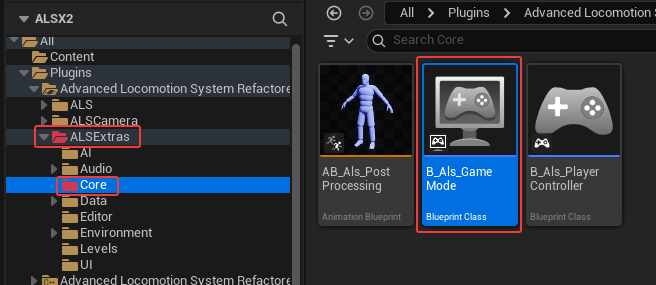
Verified class defaults on B_Als_GameMode:
| Role | Class or asset |
|---|---|
| Parent class | GameModeBase |
| Default pawn | /ALS/ALS/Character/B_Als_Character |
| Player controller | /ALS/ALSExtras/Core/B_Als_PlayerController |
| HUD class | Engine default AHUD |
The sample HUD is not assigned through HUDClass. It is created by B_Als_PlayerController during BeginPlay, which is useful to know when you want to customize the UI.
4. Character Class Stack
Section titled “4. Character Class Stack”The playable ALS character is built in layers:
ACharacter -> AAlsCharacter -> AAlsCharacterExample -> B_Als_Character| Layer | Location | Purpose |
|---|---|---|
ACharacter | Unreal Engine class | Base character movement and pawn behavior |
AAlsCharacter | Plugins/ALS-Refactored/Source/ALS/Public/AlsCharacter.h | Core ALS runtime state, movement decisions, replication, mantling, rolling, ragdolling |
AAlsCharacterExample | Plugins/ALS-Refactored/Source/ALSExtras/Public/AlsCharacterExample.h | Example wrapper that adds camera and Enhanced Input bindings |
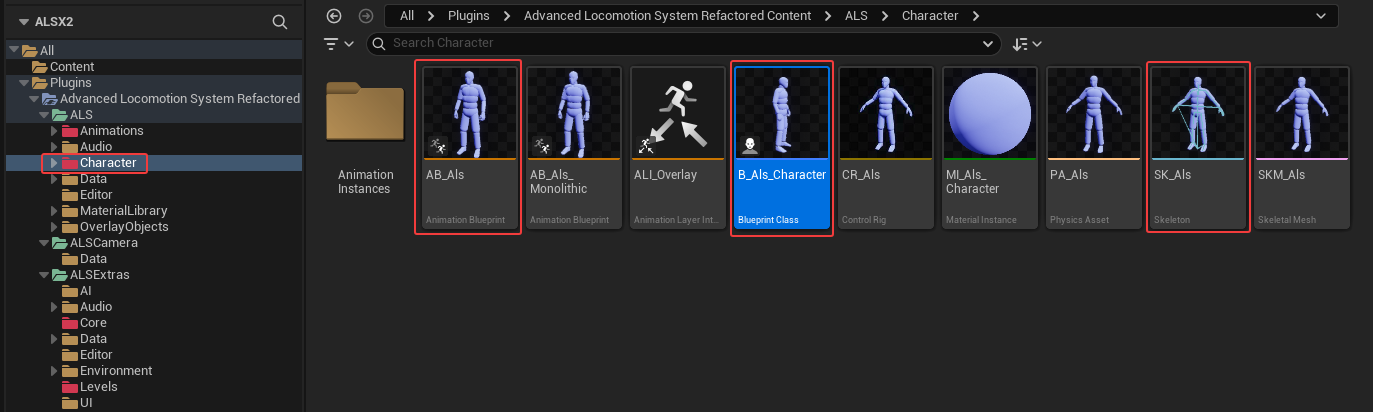
B_Als_Character | /ALS/ALS/Character/B_Als_Character | Blueprint asset that assigns mesh, animation, settings, input actions, and overlay data |
5. Important Character Components
Section titled “5. Important Character Components”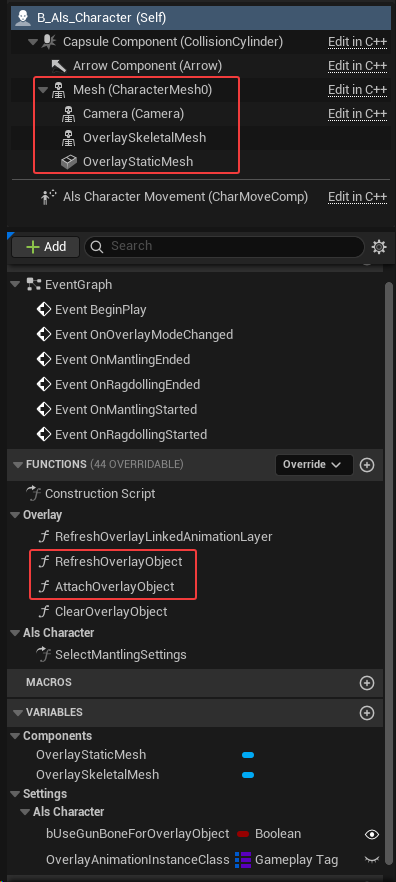
This is a good place to pause and orient yourself. If you open B_Als_Character, these are the components that matter most when you are trying to understand what you are looking at.
B_Als_Character inherits these important native components:
| Component | Class | Source or owner |
|---|---|---|
CollisionCylinder | CapsuleComponent | Inherited from ACharacter |
CharacterMesh0 | SkeletalMeshComponent | Inherited from ACharacter |
CharMoveComp | AlsCharacterMovementComponent | Set by AAlsCharacter constructor |
Camera | AlsCameraComponent | Created by AAlsCharacterExample |
B_Als_Character also adds overlay components:
| Component | Class | Purpose |
|---|---|---|
OverlaySkeletalMesh | SkeletalMeshComponent | Displays skeletal overlay objects such as rifle, pistol, bow |
OverlayStaticMesh | StaticMeshComponent | Displays static overlay objects such as box, barrel, torch |
If the core character looks confusing in the Blueprint editor, this table helps narrow your attention:
CharacterMesh0is the main bodyCamerais the ALS camera systemCharMoveCompis the custom movement component- the
Overlay*components are the extra presentation layer for held objects and overlay poses
6. Default State and Data Assets
Section titled “6. Default State and Data Assets”B_Als_Character starts with these desired-state defaults:
| State | Default value |
|---|---|
| Desired stance | Als.Stance.Standing |
| Desired gait | Als.Gait.Running |
| Desired rotation mode | Als.RotationMode.ViewDirection |
| Desired aiming | false |
| View mode | Als.ViewMode.ThirdPerson |
| Overlay mode | Als.OverlayMode.Default |
Important assigned data assets:
| Asset | Path | Purpose |
|---|---|---|
CS_Als_Default | /ALS/ALS/Data/Character/CS_Als_Default | Main character settings such as rotation, view, mantling, ragdolling, and thresholds |
MS_Als_Normal | /ALS/ALS/Data/Character/Movement/MS_Als_Normal | Movement tuning for gait speeds and movement behavior |
IMC_Als_Default | /ALS/ALS/Data/Input/IMC_Als_Default | Main gameplay input mapping context |
IMC_Als_UI | /ALS/ALSExtras/Data/Input/IMC_Als_UI | UI/sample input mapping context used by the player controller |
This is one of the big architectural patterns in ALS:
- C++ classes define the systems and rules
- data assets and Blueprints decide which settings, meshes, animations, and inputs are actually used
That is why learning the plugin means reading both code and assets together, not choosing one or the other.
7. Input Flow
Section titled “7. Input Flow”Input is split between C++ character input and Blueprint controller input.
Character gameplay input
Section titled “Character gameplay input”AAlsCharacterExample handles the normal gameplay actions in C++.
| Input action | Asset path | Function | Source |
|---|---|---|---|
IA_Als_LookMouse | /ALS/ALS/Data/Input/IA_Als_LookMouse | Input_OnLookMouse() | AlsCharacterExample.cpp:91 |
IA_Als_Look | /ALS/ALS/Data/Input/IA_Als_Look | Input_OnLook() | AlsCharacterExample.cpp:99 |
IA_Als_Move | /ALS/ALS/Data/Input/IA_Als_Move | Input_OnMove() | AlsCharacterExample.cpp:107 |
IA_Als_Sprint | /ALS/ALS/Data/Input/IA_Als_Sprint | Input_OnSprint() | AlsCharacterExample.cpp:127 |
IA_Als_Walk | /ALS/ALS/Data/Input/IA_Als_Walk | Input_OnWalk() | AlsCharacterExample.cpp:132 |
IA_Als_Crouch | /ALS/ALS/Data/Input/IA_Als_Crouch | Input_OnCrouch() | AlsCharacterExample.cpp:144 |
IA_Als_Jump | /ALS/ALS/Data/Input/IA_Als_Jump | Input_OnJump() | AlsCharacterExample.cpp:156 |
IA_Als_Aim | /ALS/ALS/Data/Input/IA_Als_Aim | Input_OnAim() | AlsCharacterExample.cpp:184 |
IA_Als_Ragdoll | /ALS/ALS/Data/Input/IA_Als_Ragdoll | Input_OnRagdoll() | AlsCharacterExample.cpp:189 |
IA_Als_Roll | /ALS/ALS/Data/Input/IA_Als_Roll | Input_OnRoll() | AlsCharacterExample.cpp:197 |
IA_Als_RotationMode | /ALS/ALS/Data/Input/IA_Als_RotationMode | Input_OnRotationMode() | AlsCharacterExample.cpp:204 |
IA_Als_ViewMode | /ALS/ALS/Data/Input/IA_Als_ViewMode | Input_OnViewMode() | AlsCharacterExample.cpp:211 |
IA_Als_SwitchShoulder | /ALS/ALS/Data/Input/IA_Als_SwitchShoulder | Input_OnSwitchShoulder() | AlsCharacterExample.cpp:217 |
The input setup happens in two steps:
NotifyControllerChanged()adds/ALS/ALS/Data/Input/IMC_Als_Defaultto the local player’s Enhanced Input subsystem.SetupPlayerInputComponent()binds each input action to the matching C++ handler.
The handlers then call ALS state or action functions such as SetDesiredGait(), SetDesiredStance(), SetDesiredAiming(), StartRollingGrounded(), StartRagdolling(), StopRagdolling(), and SetViewMode().
If you are tracing “why did my key press change the character,” this is one of the clearest routes through the plugin:
Input action -> AAlsCharacterExample handler -> AAlsCharacter state/action functionController UI input
Section titled “Controller UI input”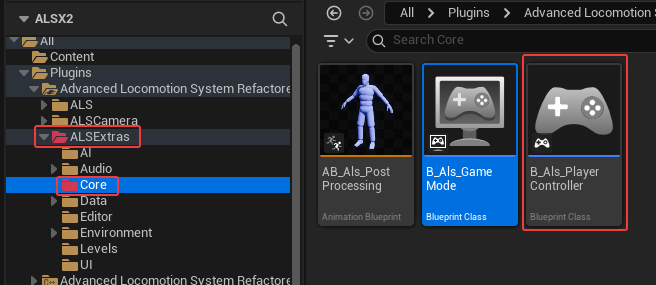
B_Als_PlayerController handles the sample UI and overlay menu input.
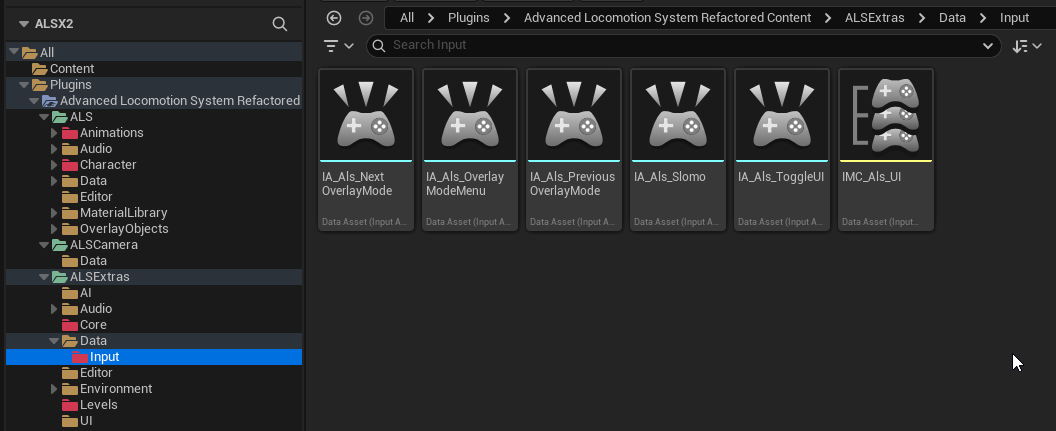
| Input action | Asset path | Behavior |
|---|---|---|
IA_Als_OverlayModeMenu | /ALS/ALSExtras/Data/Input/IA_Als_OverlayModeMenu | Opens/closes the overlay mode menu |
IA_Als_NextOverlayMode | /ALS/ALSExtras/Data/Input/IA_Als_NextOverlayMode | Selects the next overlay option |
IA_Als_PreviousOverlayMode | /ALS/ALSExtras/Data/Input/IA_Als_PreviousOverlayMode | Selects the previous overlay option |
IA_Als_ToggleUI | /ALS/ALSExtras/Data/Input/IA_Als_ToggleUI | Toggles sample HUD visibility state |
IA_Als_Slomo | /ALS/ALSExtras/Data/Input/IA_Als_Slomo | Toggles sample slow motion behavior |
Related Blueprint:
/ALS/ALSExtras/Core/B_Als_PlayerControllerRelated widgets:
| Widget | Path |
|---|---|
| HUD widget | /ALS/ALSExtras/UI/W_Als_Hud |
| Overlay menu widget | /ALS/ALSExtras/UI/W_Als_OverlayModeMenu |
| Overlay option widget | /ALS/ALSExtras/UI/W_Als_OverlayModeOption |
B_Als_Player_Controller EventGraph
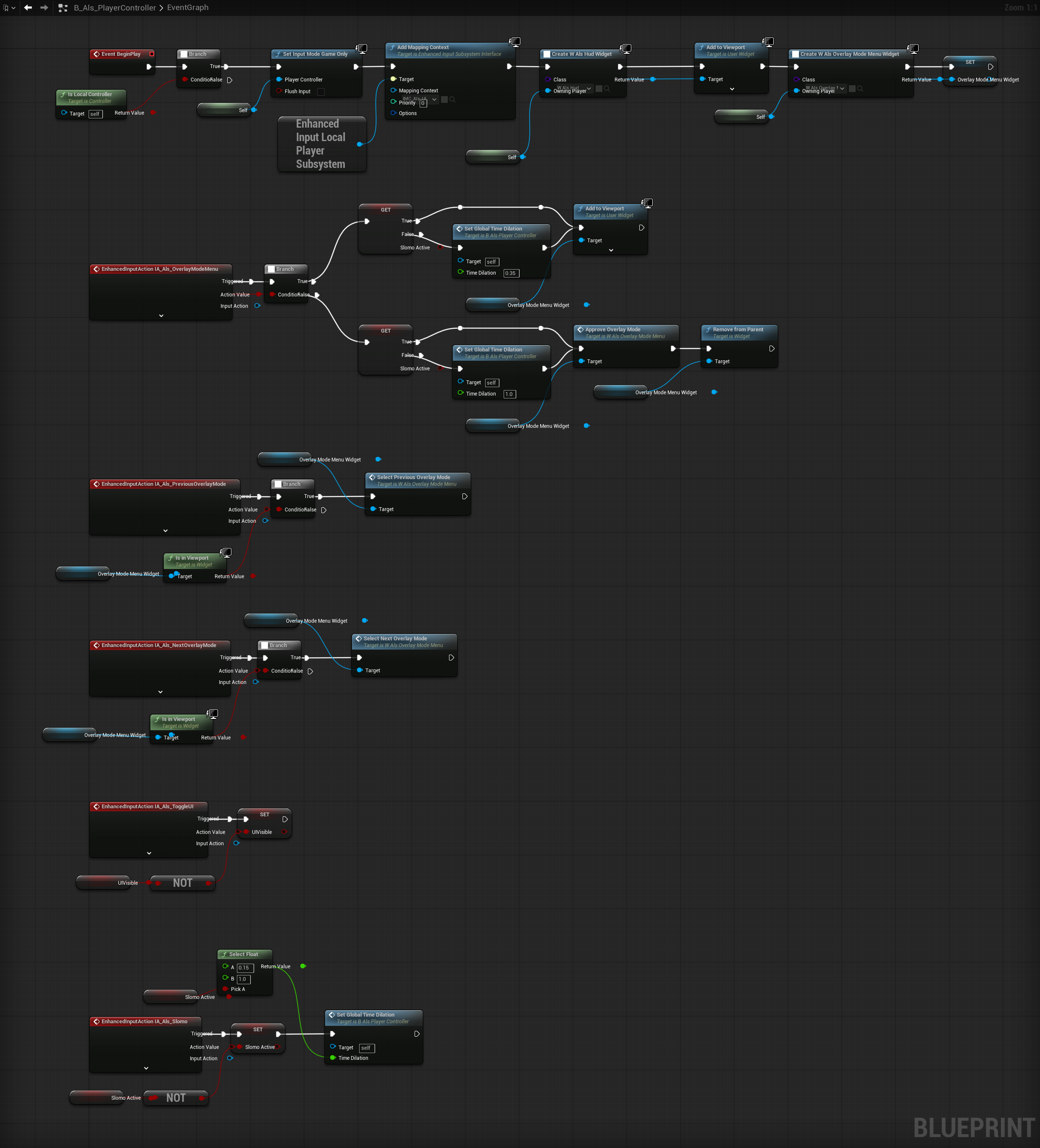
On BeginPlay, the Blueprint:
- checks that it is local
- sets input mode to game only
- adds the UI input mapping context
IMC_Als_UI - creates
W_Als_Hudand adds it to the viewport - creates
W_Als_OverlayModeMenuand stores it for later
So if you want to change:
- overlay menu behavior
- sample UI creation
- extra debug input
- slow motion toggle behavior
this Blueprint is one of the main places to inspect.
The split between character input and controller input is intentional:
- character input changes locomotion state
- controller input changes the sample presentation layer around the character
8. Tick Order and Runtime Update Flow
Section titled “8. Tick Order and Runtime Update Flow”The core update loop lives in:
Plugins/ALS-Refactored/Source/ALS/Private/AlsCharacter.cpp:266AlsCharacter.cpp Tick()
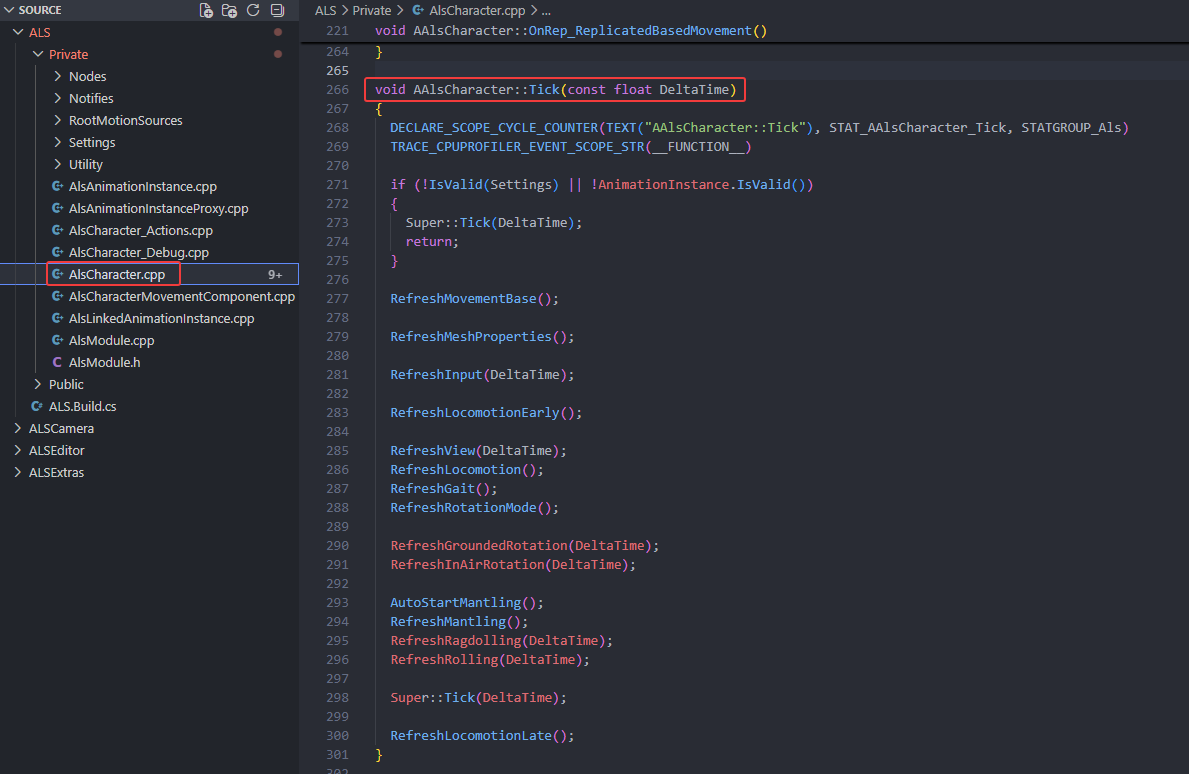
Adding function names and source lines is useful here because this section doubles as a reference. The plain-language description explains what the step means; the function/source column gives you a place to verify behavior later.
| Order | Function call in AAlsCharacter::Tick() | Function definition | What it updates |
|---|---|---|---|
| 1 | RefreshMovementBase() | AlsCharacter.cpp:404 | Tracks the floor/platform/moving base the character is standing on |
| 2 | RefreshMeshProperties() | AlsCharacter.cpp:327 | Updates mesh ticking and visibility-related behavior, especially for networking |
| 3 | RefreshInput(DeltaTime) | AlsCharacter.cpp:1115 | Converts movement input into input direction and input yaw data |
| 4 | RefreshLocomotionEarly() | AlsCharacter.cpp:1335 | Prepares early locomotion values before the main movement refresh |
| 5 | RefreshView(DeltaTime) | AlsCharacter.cpp:1222 | Updates view rotation, view yaw speed, and network smoothing |
| 6 | RefreshLocomotion() | AlsCharacter.cpp:1372 | Calculates velocity, speed, moving state, and velocity yaw data |
| 7 | RefreshGait() | AlsCharacter.cpp:942 | Resolves desired gait into actual gait based on movement state |
| 8 | RefreshRotationMode() | AlsCharacter.cpp:675 | Resolves desired rotation mode into actual rotation mode |
| 9 | RefreshGroundedRotation(DeltaTime) | AlsCharacter.cpp:1514 | Updates character rotation while grounded |
| 10 | RefreshInAirRotation(DeltaTime) | AlsCharacter.cpp:1820 | Updates character rotation while falling or in air |
| 11 | AutoStartMantling() | AlsCharacter_Actions.cpp:156 | Optionally starts mantling automatically while in air |
| 12 | RefreshMantling() | AlsCharacter_Actions.cpp:644 | Updates active mantling movement and state |
| 13 | RefreshRagdolling(DeltaTime) | AlsCharacter_Actions.cpp:866 | Updates active ragdoll state and target location |
| 14 | RefreshRolling(DeltaTime) | AlsCharacter_Actions.cpp:103 | Updates active rolling state |
| 15 | RefreshLocomotionLate() | AlsCharacter.cpp:1439 | Final locomotion cleanup after Super::Tick() |
If you are debugging something that “looks wrong,” this table is often where the investigation starts. Many visible problems show up in animation or camera, but their cause actually starts earlier in the tick flow.
9. Gameplay Tags and ALS State
Section titled “9. Gameplay Tags and ALS State”ALS uses Unreal’s Gameplay Tags to name character states in a consistent, data-friendly way.
A gameplay tag is a hierarchical name such as:
Als.Gait.RunningAls.RotationMode.ViewDirectionAls.OverlayMode.RifleIn C++, these are still values, not loose strings. ALS defines them in:
Plugins/ALS-Refactored/Source/ALS/Private/Utility/AlsGameplayTags.cppand declares them in:
Plugins/ALS-Refactored/Source/ALS/Public/Utility/AlsGameplayTags.hWhy ALS uses gameplay tags
Section titled “Why ALS uses gameplay tags”Gameplay tags work well for ALS because the same state value needs to be understood by several systems:
| System | Example use |
|---|---|
| Character C++ | Stores current and desired state, such as DesiredGait or OverlayMode |
| Animation Blueprints | Chooses locomotion, stance, overlay, or action animation layers |
| Blueprint assets | Exposes readable state values in defaults and maps |
| Replication | Sends selected state values over the network |
For example, DesiredGait is a FGameplayTag. When sprint input is pressed, AAlsCharacterExample::Input_OnSprint() sets the desired gait to Als.Gait.Sprinting. Later, AAlsCharacter::RefreshGait() decides whether sprinting is actually allowed and updates the final Gait state.
Desired state vs actual state
Section titled “Desired state vs actual state”ALS often separates desired state from actual state.
| Desired state | Actual state | Meaning |
|---|---|---|
DesiredGait | Gait | The player may request sprinting, but ALS decides whether the character can actually sprint |
DesiredStance | Stance | The player may request crouching, but ALS applies it when movement state allows |
DesiredRotationMode | RotationMode | The player may request a mode, while aiming or first person can affect the final mode |
This distinction is important when debugging. If input seems correct but animation is different, check both the desired value and the final resolved value.
GameplayTags Driving Animation State
Section titled “GameplayTags Driving Animation State”| Namespace | Values |
|---|---|
LocomotionMode | Grounded, InAir |
RotationMode | VelocityDirection, ViewDirection, Aiming |
Stance | Standing, Crouching |
Gait | Walking, Running, Sprinting |
OverlayMode | Default, Masculine, Feminine, Injured, HandsTied, Rifle, PistolOneHanded, PistolTwoHanded, Bow, Torch, Binoculars, Box, Barrel |
LocomotionAction | Rolling, Mantling, Ragdolling, GettingUp |
ViewMode | FirstPerson, ThirdPerson |
GroundedEntryMode | FromRoll |
10. Animation Architecture
Section titled “10. Animation Architecture”The sample character does not use AB_Als_Locomotion as the top-level animation Blueprint. The top-level animation Blueprint is:
/ALS/ALS/Character/AB_AlsAB_Als acts as the main animation hub. It links into smaller animation Blueprints that focus on specific parts of the pose.
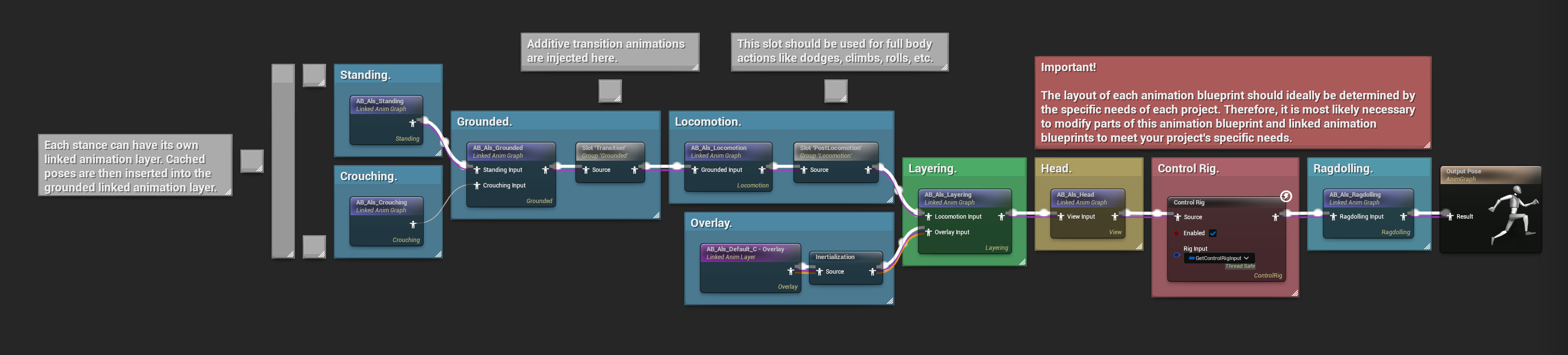
This is one of the places where ALS can feel intimidating at first. The good news is that the structure is actually pretty readable once you stop expecting one single “master locomotion blueprint” to contain everything.
Multiple Linked Animation Blueprints
Section titled “Multiple Linked Animation Blueprints”Animation instance assets:
| Animation Blueprint | Asset path | Purpose |
|---|---|---|
AB_Als | /ALS/ALS/Character/AB_Als | Main animation Blueprint assigned to the character |
AB_Als_Locomotion | /ALS/ALS/Character/AnimationInstances/AB_Als_Locomotion | Main locomotion blending, including grounded and in-air routing |
AB_Als_Grounded | /ALS/ALS/Character/AnimationInstances/AB_Als_Grounded | Grounded movement such as walk, run, sprint, starts, stops, and pivots |
AB_Als_View | /ALS/ALS/Character/AnimationInstances/AB_Als_View | View-dependent animation layer; this asset is present as an object redirector in the checked plugin |
AB_Als_Head | /ALS/ALS/Character/AnimationInstances/AB_Als_Head | Head look and view/aim related pose contribution |
AB_Als_Layering | /ALS/ALS/Character/AnimationInstances/AB_Als_Layering | Upper/lower body layering and overlay pose blending |
AB_Als_Ragdolling | /ALS/ALS/Character/AnimationInstances/AB_Als_Ragdolling | Ragdoll and get-up animation support |
AB_Als_Monolithic | /ALS/ALS/Character/AB_Als_Monolithic | All-in-one reference or alternative animation Blueprint |
Overlay animation Blueprints live under:
/ALS/ALS/Character/AnimationInstances/Overlays/Examples include:
| Overlay animation Blueprint | Asset path |
|---|---|
AB_Als_Default | /ALS/ALS/Character/AnimationInstances/Overlays/AB_Als_Default |
AB_Als_Rifle | /ALS/ALS/Character/AnimationInstances/Overlays/AB_Als_Rifle |
AB_Als_PistolOneHanded | /ALS/ALS/Character/AnimationInstances/Overlays/AB_Als_PistolOneHanded |
AB_Als_PistolTwoHanded | /ALS/ALS/Character/AnimationInstances/Overlays/AB_Als_PistolTwoHanded |
AB_Als_Bow | /ALS/ALS/Character/AnimationInstances/Overlays/AB_Als_Bow |
AB_Als_Torch | /ALS/ALS/Character/AnimationInstances/Overlays/AB_Als_Torch |
Animation C++ Update Flow
Section titled “Animation C++ Update Flow”The animation Blueprint is backed by UAlsAnimationInstance.
| Function | Source | Purpose |
|---|---|---|
NativeUpdateAnimation() | Plugins/ALS-Refactored/Source/ALS/Private/AlsAnimationInstance.cpp:98 | Reads character state on the game thread |
NativeThreadSafeUpdateAnimation() | AlsAnimationInstance.cpp:170 | Refreshes animation-side data that can run thread-safely |
RefreshLayering() | AlsAnimationInstance.cpp:287 | Reads animation curves that control body-part layering |
RefreshPose() | AlsAnimationInstance.cpp:336 | Reads pose curves such as grounded, in-air, stance, and gait amounts |
RefreshView() | AlsAnimationInstance.cpp:386 | Updates view yaw/pitch data used by head, spine, and aim layers |
RefreshFeet() | AlsAnimationInstance.cpp:1298 | Updates foot placement and foot lock data |
RefreshTransitions() | AlsAnimationInstance.cpp:1676 | Handles dynamic transition availability |
RefreshRotateInPlace() | AlsAnimationInstance.cpp:1828 | Determines rotate-in-place behavior |
RefreshTurnInPlace() | AlsAnimationInstance.cpp:1904 | Determines turn-in-place behavior |
At a high level, the animation side is reading whatever AAlsCharacter has already resolved, then turning that into pose decisions. So if the animation looks wrong, it is often worth checking whether the problem is really animation, or whether the character state feeding it is already wrong.
11. Camera Architecture
Section titled “11. Camera Architecture”The ALS camera is not a typical Unreal spring-arm camera stack.
The core class is:
UAlsCameraComponentSource references:
| Topic | Source |
|---|---|
| Class declaration | Plugins/ALS-Refactored/Source/ALSCamera/Public/AlsCameraComponent.h |
| Component tick | Plugins/ALS-Refactored/Source/ALSCamera/Private/AlsCameraComponent.cpp:77 |
GetViewInfo() | AlsCameraComponent.cpp:140 |
| Main camera update | AlsCameraComponent.cpp:154 |
Character CalcCamera() delegation | Plugins/ALS-Refactored/Source/ALSExtras/Private/AlsCharacterExample.cpp:51 |
UAlsCameraComponent:
- inherits from
USkeletalMeshComponent - is attached to the character mesh
- calculates camera view data itself
- supports first-person and third-person behavior
- supports shoulder switching
- handles pivot lag and camera collision tracing
- can override field of view and post-process weight
Related camera assets:
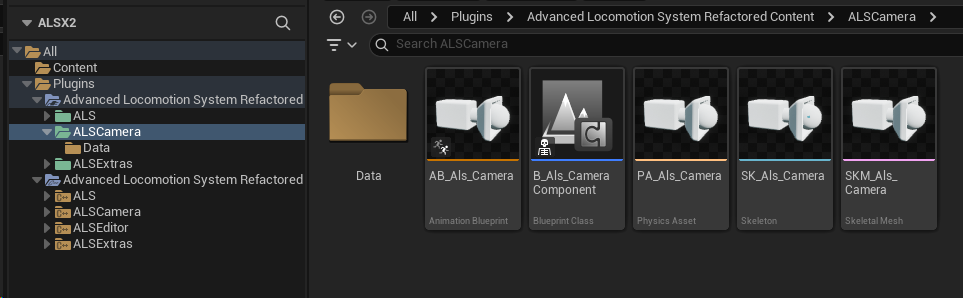
| Asset | Path |
|---|---|
| Camera component Blueprint | /ALS/ALSCamera/B_Als_CameraComponent |
| Camera animation Blueprint | /ALS/ALSCamera/AB_Als_Camera |
If you come from a standard Unreal character setup, this section is a good reminder that ALS is doing something more custom here. That is why trying to reason about it like a normal spring-arm stack usually gets confusing fast.
12. Overlay System
Section titled “12. Overlay System”Overlay mode controls how the character’s upper body, held object, and overlay animation layer should behave.
Overlay gameplay tags include:
Als.OverlayMode.DefaultAls.OverlayMode.RifleAls.OverlayMode.PistolOneHandedAls.OverlayMode.PistolTwoHandedAls.OverlayMode.BowAls.OverlayMode.TorchAls.OverlayMode.BoxAls.OverlayMode.BarrelB_Als_Character maps overlay tags to overlay animation Blueprints through OverlayAnimationInstanceClasses.
Example mappings:
| Overlay tag | Animation Blueprint path |
|---|---|
Als.OverlayMode.Default | /ALS/ALS/Character/AnimationInstances/Overlays/AB_Als_Default |
Als.OverlayMode.Rifle | /ALS/ALS/Character/AnimationInstances/Overlays/AB_Als_Rifle |
Als.OverlayMode.PistolOneHanded | /ALS/ALS/Character/AnimationInstances/Overlays/AB_Als_PistolOneHanded |
Als.OverlayMode.PistolTwoHanded | /ALS/ALS/Character/AnimationInstances/Overlays/AB_Als_PistolTwoHanded |
Als.OverlayMode.Bow | /ALS/ALS/Character/AnimationInstances/Overlays/AB_Als_Bow |
Als.OverlayMode.Torch | /ALS/ALS/Character/AnimationInstances/Overlays/AB_Als_Torch |
Overlay object assets include:
| Object | Path |
|---|---|
| Rifle skeletal mesh | /ALS/ALS/OverlayObjects/Rifle/SKM_Als_Rifle |
| Pistol skeletal mesh | /ALS/ALS/OverlayObjects/Pistol/SKM_Als_Pistol |
| Bow skeletal mesh | /ALS/ALS/OverlayObjects/Bow/SKM_Als_Bow |
| Torch static mesh | /ALS/ALS/OverlayObjects/Torch/SM_Als_Torch |
| Box static mesh | /ALS/ALS/OverlayObjects/Box/SM_Als_Box |
| Barrel static mesh | /ALS/ALS/OverlayObjects/Barrel/SM_Als_Barrel |
The overlay menu UI is controlled by:
/ALS/ALSExtras/Core/B_Als_PlayerControllerThe actual overlay state belongs to the character and is changed through AAlsCharacter::SetOverlayMode() in:
Plugins/ALS-Refactored/Source/ALS/Private/AlsCharacter.cpp:1029This is a helpful place to separate two ideas:
- the overlay selection UI lives in the controller/UI layer
- the actual overlay state lives in the character/runtime layer
That separation makes the plugin easier to customize later, because you can replace the menu without having to rewrite how overlays work internally.
13. Networking and Replication
Section titled “13. Networking and Replication”ALS is network-aware. It replicates selected state so remote clients can animate and simulate the character consistently.
Replication is configured in:
Plugins/ALS-Refactored/Source/ALS/Private/AlsCharacter.cpp:71Replicated or network-managed values include:
| Value | Purpose |
|---|---|
DesiredStance | Keeps crouch or stand request synchronized |
DesiredGait | Keeps walk, run, or sprint request synchronized |
bDesiredAiming | Keeps aiming request synchronized |
DesiredRotationMode | Keeps requested rotation behavior synchronized |
ViewMode | Keeps first-person or third-person state synchronized |
OverlayMode | Keeps overlay animation and object state synchronized |
ReplicatedViewRotation | Shares view rotation data for smoothing and animation |
InputDirection | Shares movement input direction |
DesiredVelocityYawAngle | Helps short movement starts replicate correctly |
RagdollTargetLocation | Helps ragdoll state replicate |
Useful RPC or state functions:
| Function | Source |
|---|---|
SetViewMode() | AlsCharacter.cpp:430 |
SetDesiredAiming() | AlsCharacter.cpp:564 |
SetDesiredStance() | AlsCharacter.cpp:760 |
SetDesiredGait() | AlsCharacter.cpp:889 |
SetOverlayMode() | AlsCharacter.cpp:1029 |
ServerSetDesiredGait() | AlsCharacter.cpp:923 |
ServerSetOverlayMode() | AlsCharacter.cpp:1067 |
ServerStartMantling() | AlsCharacter_Actions.cpp:449 |
ServerStartRagdolling() | AlsCharacter_Actions.cpp:743 |
If you are only interested in single-player behavior, this section can feel easy to skip. It is still worth knowing it exists, because some ALS logic makes a lot more sense once you realize the plugin is carefully trying to keep local and remote characters in sync.
14. Debug Features
Section titled “14. Debug Features”ALS includes built-in debug channels that can be enabled from the console.
Character debug displays:
| Command | Source constant |
|---|---|
ShowDebug Als.Curves | Plugins/ALS-Refactored/Source/ALS/Public/Utility/AlsConstants.h:90 |
ShowDebug Als.State | AlsConstants.h:91 |
ShowDebug Als.Shapes | AlsConstants.h:92 |
ShowDebug Als.Traces | AlsConstants.h:93 |
ShowDebug Als.Mantling | AlsConstants.h:94 |
Camera debug displays:
| Command | Source |
|---|---|
ShowDebug Als.CameraCurves | Plugins/ALS-Refactored/Source/ALSCamera/Private/AlsCameraModule.cpp:36 |
ShowDebug Als.CameraShapes | AlsCameraModule.cpp:41 |
ShowDebug Als.CameraTraces | AlsCameraModule.cpp:46 |
These are useful when checking:
- foot placement
- camera traces
- mantling traces
- character state
- animation curves
- camera collision
If you are learning the plugin, these debug displays are one of the best ways to turn ALS from “a lot of moving parts” into something you can actually inspect step by step.
15. Complete Play Flow Summary
Section titled “15. Complete Play Flow Summary”This is the full sample flow from map startup to rendered character pose:
[Map starts]    |    vB_Als_GameMode    Path: /ALS/ALSExtras/Core/B_Als_GameMode    |    |-- DefaultPawnClass    |     -> /ALS/ALS/Character/B_Als_Character    |    |-- PlayerControllerClass          -> /ALS/ALSExtras/Core/B_Als_PlayerController
[Player controller BeginPlay]    |    |-- Adds UI mapping context    |     -> /ALS/ALSExtras/Data/Input/IMC_Als_UI    |    |-- Creates HUD widget    |     -> /ALS/ALSExtras/UI/W_Als_Hud    |    |-- Creates overlay menu widget          -> /ALS/ALSExtras/UI/W_Als_OverlayModeMenu
[Character possession]    |    vAAlsCharacterExample::NotifyControllerChanged()    Source: Plugins/ALS-Refactored/Source/ALSExtras/Private/AlsCharacterExample.cpp:19    |    |-- Adds default gameplay input mapping context          -> /ALS/ALS/Data/Input/IMC_Als_Default
[Input binding]    |    vAAlsCharacterExample::SetupPlayerInputComponent()    Source: AlsCharacterExample.cpp:62    |    |-- Binds movement, look, sprint, crouch, jump, aim, roll,        ragdoll, rotation mode, view mode, and shoulder switch actions
[Per-frame character update]    |    vAAlsCharacter::Tick()    Source: Plugins/ALS-Refactored/Source/ALS/Private/AlsCharacter.cpp:266    |    |-- RefreshMovementBase()    |-- RefreshInput()    |-- RefreshLocomotion()    |-- RefreshGait()    |-- RefreshRotationMode()    |-- RefreshGroundedRotation() / RefreshInAirRotation()    |-- AutoStartMantling() / RefreshMantling()    |-- RefreshRagdolling()    |-- RefreshRolling()
[Camera update]    |    vAAlsCharacterExample::CalcCamera()    Source: AlsCharacterExample.cpp:51    |    vUAlsCameraComponent::GetViewInfo()    Source: Plugins/ALS-Refactored/Source/ALSCamera/Private/AlsCameraComponent.cpp:140
[Animation update]    |    v/ALS/ALS/Character/AB_Als    |    |-- Reads ALS character state through UAlsAnimationInstance    |-- Routes into linked animation Blueprints    |-- Blends locomotion, view, overlay, feet, transitions, turn-in-place,        rotate-in-place, ragdolling, and final pose output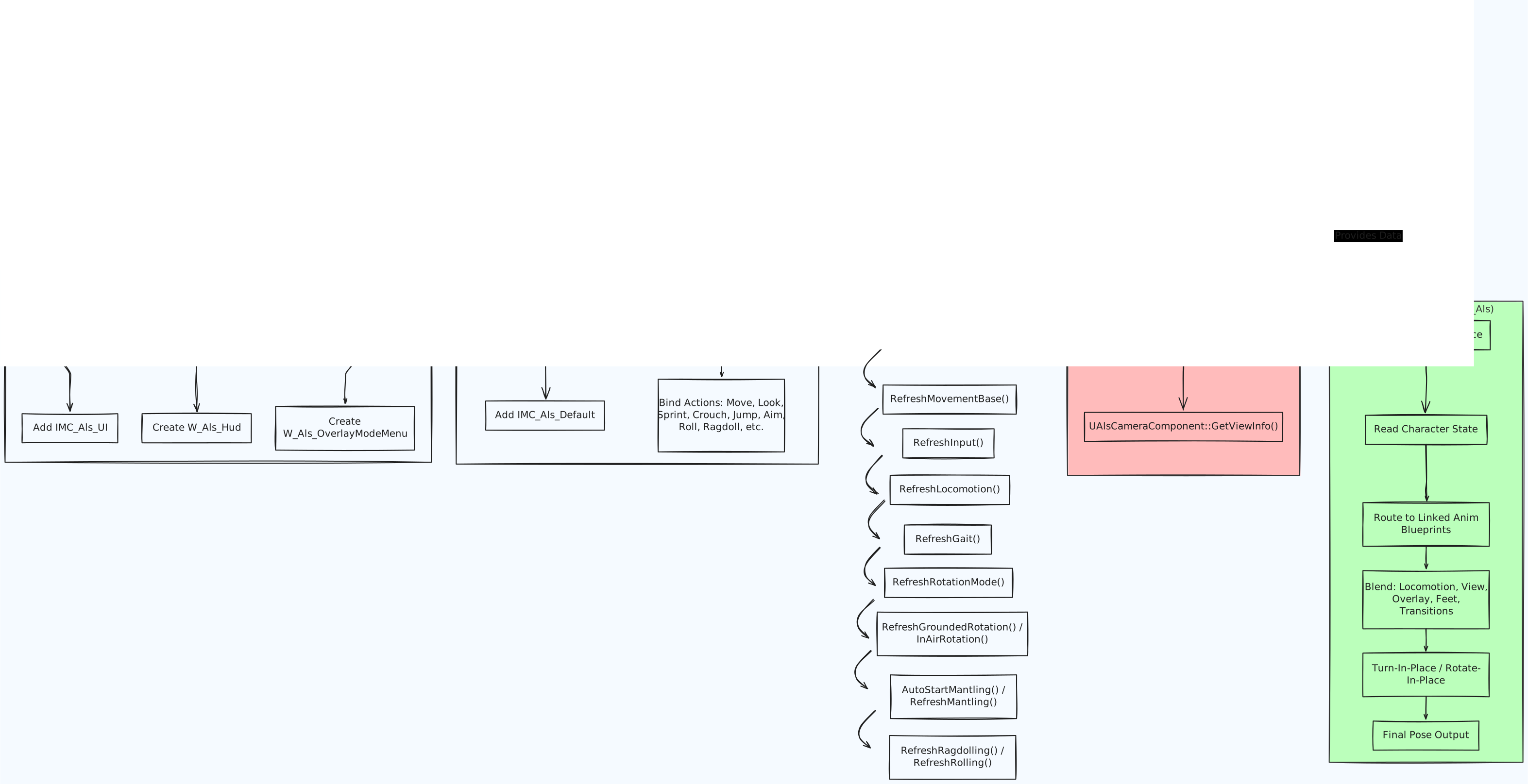
The key idea is that ALS state is produced mostly by AAlsCharacter, then consumed by the camera and animation systems. When debugging behavior, follow that direction: input, character state, camera or animation output.