Preferences and Troubleshooting
Preferences
Section titled “Preferences”Open the add-on preferences in Edit > Preferences > Add-ons > RIn.Rename. The settings are split into tabs: Display, Naming, CSV, Hotkeys, Favourites, Aliases and Switch.
The most used settings are also available:
- inside the rename dialog, by typing /. (Quick Options)
- in the RIn.Rename panel of the 3D Viewport header
Favourites, Aliases and Switch are explained on Favourites, Switch Words, and Aliases.
Display Tab
Section titled “Display Tab”- HUD1: Display the new name above each object’s origin (on by default).
- HUD2: Display the renamed results in the bottom-left corner of the 3D Viewport.
- Viewport Name: Temporarily turn on each object’s viewport name (Object Properties > Viewport Display > Name) while RIn.Rename is open (on by default).
- Selection Order: Show the selection order number next to each name in HUD1 (on by default).
- Header Icon: Show the RIn.Rename icon in the 3D Viewport header.
- Preview Text: Show the renamed result under the text field (only shown in Blender 4.1 and earlier, see below).
- HUD Font Color, HUD Font Size, and HUD Bottom Left Font Size.
- No Selection Mode HUD Margin X / Y: The position of the name list in No Selection Mode.
Naming Tab
Section titled “Naming Tab”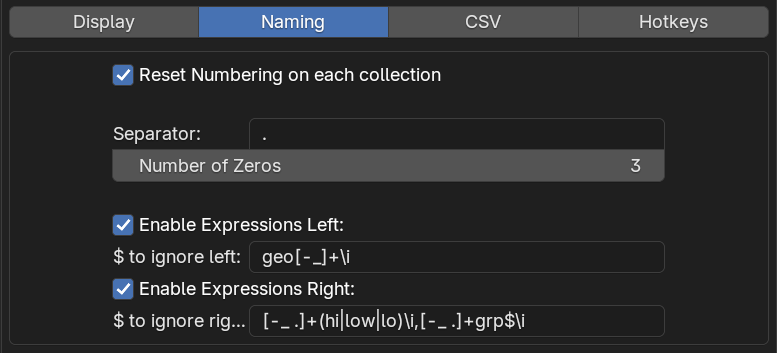
- Auto Rename Mesh Data Name: Also rename the object’s data (eg. the mesh) to the new object name.
- Case Sensitive Search & Replace: Off by default, so
cube/Boxalso matchesCube. See Search and Replace. - Collapse non-alphanumeric runs for ^ and Characters ignored by ^: See Replace Non-Alphanumeric Characters.
- /title ignores all-uppercase words: Keep words like
GEOorLODuppercase when using /title . - Apply default post-filter and its options: See Default Post-Filter.
- Reset Numbering on each collection: See below.
- Only Auto-Number the Last Number (on by default): When a typed name has several numbers, only the last one counts up. See Which numbers count up?
- Change Numbering Format: Format Last Number by Default (on by default):
<4>formats only the last number; use<4a>for all numbers. See Change Numbering Format. - Increment Typed Numbers (on by default): The checkbox shown under the text field when a pattern mixes @ with a typed number. See Alphabet Numbering.
- Bones: settings for renaming bones:
- Mirror Bone Renames (off by default): Also rename each bone’s mirror on the other side.
- Add Side to Bone Names (on by default): Add the side each bone is on to names typed without one, eg.
arm01→arm01.L. - Default Side Style (
.L / .Rby default): The side added when the bone’s old name has no side style to keep. - Bone Numbering: Symmetric (default) or Continuous, when bones on both sides are selected.
- Bone Mirror Tolerance (0.001 by default): How close a bone must be to the centre line, or to a mirrored position.
- Separator and Number of Zeros: The default numbering format, see below.
- Enable Expressions Left / Right and $ to ignore left / right: See $ Expressions.
Reset Numbering on each collection
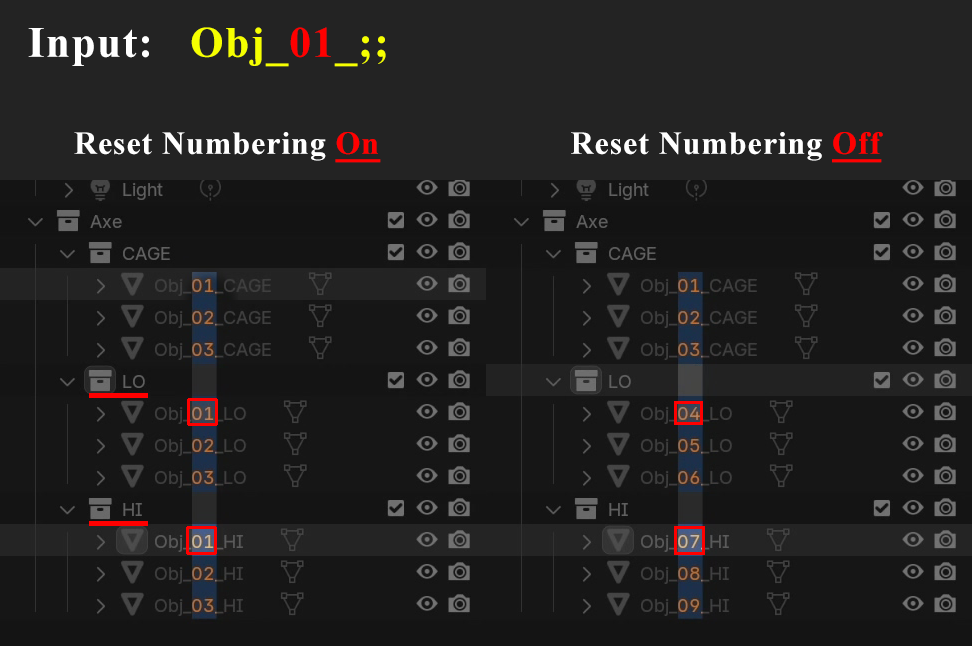
Section titled “Reset Numbering on each collection”This setting (on by default) resets the numbering on each collection. It affects the numbering in your input (you need to have numbers in the text input eg: ‘name_01’) and the @ letters.

Numbering Format
Section titled “Numbering Format”
The Separator and Number of Zeros settings let you customize the numbering format that is added when names aren’t unique. By default, it follows Blender’s format (.001), but you can change it to _01, -0001.
Example:
The Separator is also the default separator of /sc .
$ Expressions
Section titled “$ Expressions”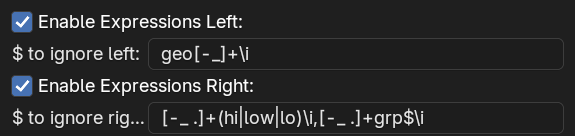
These settings let you customize how the $ token expands.
By default, $ only trims characters that aren’t letters from the beginning and end of a name. Turn on Enable Expressions Left and/or Enable Expressions Right (both off by default) to also remove the patterns in $ to ignore left and $ to ignore right. This is useful for automatically stripping common naming patterns like GEO_, _GRP, _HI, or _LO.
- Both settings accept regular expressions, and you can define multiple patterns by separating them with commas.
- Left patterns are only removed from the start of the name, right patterns only from the end.
- To make an expression case-insensitive, add
\iat the end.
Default Expressions in Rin.rename:
- $ to ignore left:
geo[-_]+\i - $ to ignore right:
[-_ .]+(hi|low|lo)$\i,[-_ .]+grp$\i
Default Post-Filter
Section titled “Default Post-Filter”The default post-filter is a command that runs on every rename result after your own command, for example to always clean up separators and use title case. It is off by default.
- Apply default post-filter: Turn the filter on.
- Default post-filter: The command to run. It can be a chain, the default is
^/_|/title. - Default post-filter ignored regex patterns: Comma-separated regular expressions for parts of the name the filter should leave unchanged. Add
\iat the end of a pattern for case-insensitive matching. - Apply post-filter to list modes: Also run the filter on the object data lists (
/m,/mo,/vg,/sk,/uv,/at,/ca). Off by default.
The filter is skipped when your command adds a prefix or suffix (>, >>, <, <<), and for actions such as /d that don’t create names.
CSV Tab
Section titled “CSV Tab”- Open CSV with: The application used to open rename list files. Leave it blank to use the operating system’s default application.
- Export as Text File: Use a plain text list instead of CSV. See Rename List Workflow.
Hotkeys Tab
Section titled “Hotkeys Tab”- The RIn.Rename hotkey (default: F2).
- Single Selection Mode: How RIn.Rename opens when one item is selected: Popup, Dialog (default) or Blender Native. See Selection Modes.
User Settings
Section titled “User Settings”The Save/Load/Open User Settings buttons at the bottom of the preferences let you store your settings in a configuration file named user-config.json.

- Save User Settings: Write your current preferences, hotkeys, favourites, aliases and switch words to the file.
- Load User Settings: Apply the settings from the file.
- Open User Settings: Open the file in your text editor.
The file is kept in Blender’s user config folder, in a rinrename folder (next to your command history, history.json):
- Windows:
%APPDATA%\Blender Foundation\Blender\{version}\config\rinrename\ - macOS:
~/Library/Application Support/Blender/{version}/config/rinrename/ - Linux:
~/.config/blender/{version}/config/rinrename/
Because the file is outside the add-on folder, it survives reinstalling or updating RIn.Rename, and a fresh install picks up most of the saved settings. Use Load User Settings to restore all of them. A file left in the add-on folder by older versions is copied there automatically.
If the file can’t be read (eg. after a bad manual edit), RIn.Rename starts with default settings and keeps the broken file as user-config.json.broken.
The json file looks like this (shortened):
{ "hotkey": [ "F2", 0, 0, 0 ], "display_hud_above_object": 1, "display_hud_left_corner": 0, "separator": ".", "num_of_zeros": 3, "reset_numbering_on_each_collection": 1, "increment_only_last_number": 1, "dollar_token_to_ignore_left": "geo[-_]+\\i", "fav1": ";;|/lo| /-", "fav1_comment": "Rename according to collection", "alias1": "", "alias1_text": "", "single_selection_mode": "DIALOG", "switch_words": [ [ "Bake", "high, hi, hp, highpoly, hipoly" ] ]}Issues in Blender Version 4.1 and earlier
Section titled “Issues in Blender Version 4.1 and earlier”RIn.Rename gives the best experience in Blender 4.2 or newer. It still runs in Blender 3.6 to 4.1, but with the limits below.
In Blender version 4.1 and earlier, there’s a known issue where the preview text (highlighted at the picture below) doesn’t update in real-time as you type.
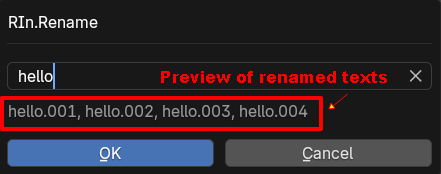
Preview renamed textsTo work around this, you can disable the preview text and instead rely on the Heads-Up Display (HUD) in the bottom-left corner of the 3D view. In these versions, RIn.Rename uses this setup by default.
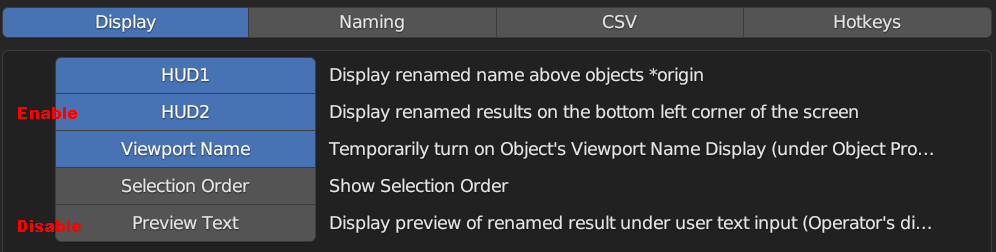
HUD2, Turn Off Preview TextNo Selection Mode HUD
Section titled “No Selection Mode HUD”When you run RIn.Rename with nothing selected, the no-selection preview HUD appears only after you type a rename pattern. The HUD position controls are shown only while that preview HUD is visible, so the position settings stay hidden when there is no HUD on screen.
Error Reporting
Section titled “Error Reporting”If you encounter bugs or unexpected issues, please don’t hesitate to reach out. The more details you provide, the easier it will be for me to troubleshoot:
✅ Console error messages
✅ Screenshots (if necessary)
✅ Videos (if necessary)
I’ll do my best to respond promptly.
How to enable console logging:
Section titled “How to enable console logging:”- Run Blender from the console (command line).
- Enable the “Enable Console Logging” option in the add-on preferences to display helpful debugging information.

Suggestions & Ideas Welcome!
Section titled “Suggestions & Ideas Welcome!”Got feedback? Ideas for new features? Or just not happy with how something works? I’d love to hear from you!
📧 Email me directly
💬 Comment on my YouTube video
📝 Post on the Blender Artists thread
💻 Join the discussion on my Discord channel
Your input helps make RinRename better!
Future Works / Todo
Section titled “Future Works / Todo”Just some ideas, not yet commited:
New command to convert numbering format[NOV2025]Search and replace feature ability to ignore case for the search text (eg. search/ will match Search or SearCH)[NOV2025]- Simple expression for in search and replace
- Type token? (Light, Geo, Lattice, grp, etc)
Rename vertex groups[MAY2026]- Rename textures,
materials[MAY2026] Rename all instead of selected(No Selection Mode)- Rename everything in a collection without having to select the objects
- Improve +text@position to support negatif numbers, and get dynamic position using regular expressions
- Make @ more flexible: to be able to use lowercase, to be able to start from a specific Alphabets
- Invert word and number token !~1 (every word except the first one?)
- etc…