Favourites, Switch Words, and Aliases
Favourites
Section titled “Favourites”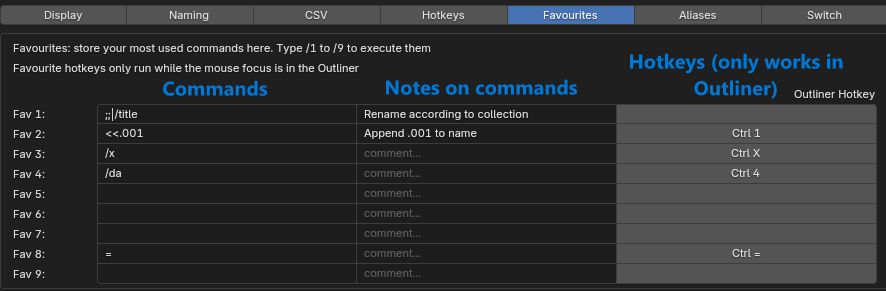
Store up to 9 of your most used commands in Preferences > Favourites. Each favourite has a command, an optional comment, and an optional Outliner hotkey.
New installs come with two examples:
- Fav 1:
;;|/lo| /-(Rename according to collection) - Fav 2:
<<.001(Append .001 to name)
Favourite buttons: /f
Section titled “Favourite buttons: /f”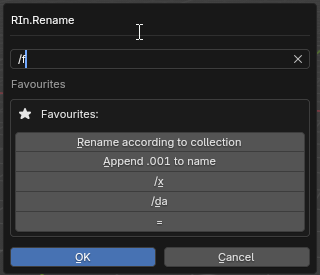
Type /f to show a button for each favourite. A button shows the favourite’s comment, or its command when there is no comment.
Clicking a button fills the text field with that command, so you can check the preview before pressing Enter.
Run by number: /1 to /9
Section titled “Run by number: /1 to /9”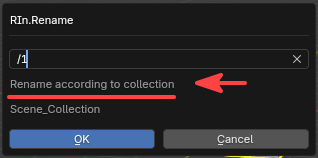
Type /1 to /9 to replace the text with that favourite’s command. While the text is unchanged, the favourite’s comment is shown under the text field. Press Enter to apply it.
Outliner hotkeys
Section titled “Outliner hotkeys”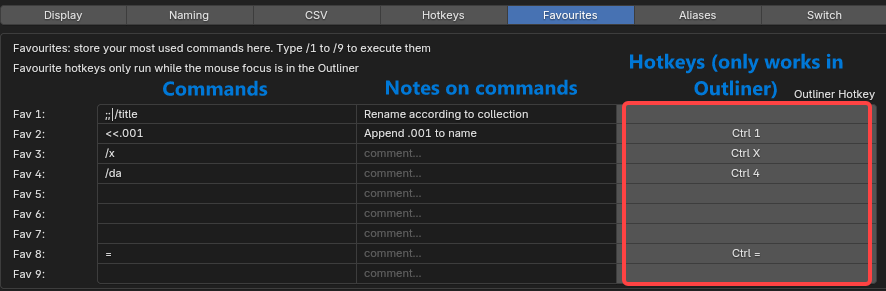
Each favourite can have its own hotkey, set in the Outliner Hotkey column of Preferences > Favourites (none are set by default).
- Favourite hotkeys only work while the mouse is over the Outliner.
- They rename the items selected in the Outliner right away, without opening the dialog.
- Nothing happens (with a warning) when the favourite is empty or nothing is selected. A favourite with /da also runs with nothing selected.
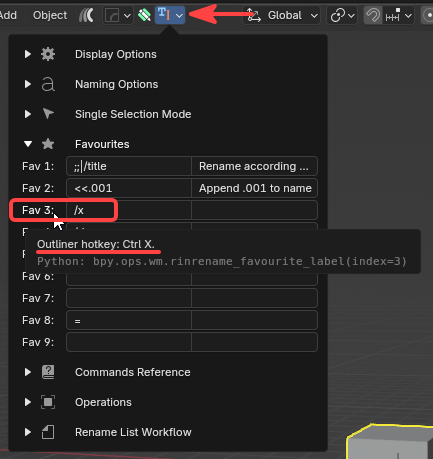
In the RIn.Rename panel of the 3D Viewport header, hover over a Fav N: label to see its hotkey.
Switch Words: /s
Section titled “Switch Words: /s”
Type /s to show buttons that switch words like high / low / cage or left / right in the selected names.
- The case of each name is kept (
high→low,HI→LO,Hi→Lo), and so is the short or long form (hi→lo,hp→lp). - The buttons are named after the first matching name, eg.
_RforArm_L. - A word is only offered when at least one name doesn’t already use it.
- Names without a switch word stay unchanged, and the info text says how many names were found.
- Matching ignores case, and a word only matches when it isn’t touching other letters, eg.
_high,.Lorhigh001, but notsuperhigh.
When the selected names use exactly two words of the same group (eg. some _L and some _R), a Swap button appears. It swaps the two words in every name, so Arm_L becomes Arm_R and Arm_R becomes Arm_L. Names are renamed through temporary names, so swapped names never clash.
Typed switch commands: /s:{word}
Section titled “Typed switch commands: /s:{word}”You can also type the switch yourself:
- /s:word switches to that word, eg.
/s:lowturns_highinto_lowand_HIinto_LO. - /s:word:word swaps two words of the same group, eg.
/s:left:right.
Both can be chained with other commands, eg. /s:low|<<_GEO.
Switch preferences
Section titled “Switch preferences”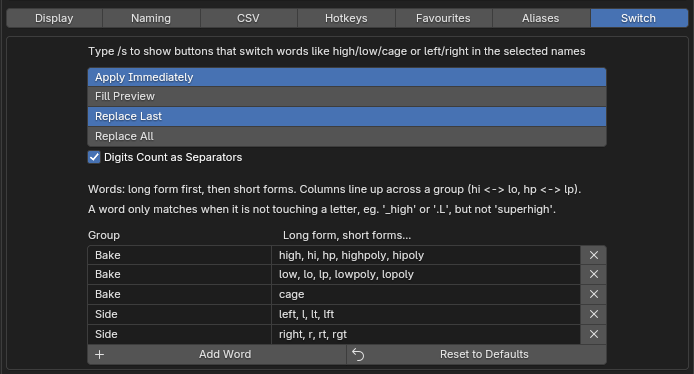
Preferences > Switch:
- Switch Button Click: Apply Immediately (default) renames the selection right away and keeps the dialog open so you can switch again (undo with Ctrl+Z). Fill Preview writes
/s:{word}into the text field so you can check the preview first, then press Enter. - Word Appears Twice: Replace Last (default) only replaces the last occurrence (
high_x_high→high_x_low), Replace All replaces every one (low_x_low). - Digits Count as Separators (on by default): treat numbers like separators, so
mesh_high001andarm_L01are found.
Switch word table
Section titled “Switch word table”The words live in a table in Preferences > Switch. Each row is one word with a Group and its forms: the long form first, then the short forms, separated by commas. Words in the same group switch to each other.
The default table:
| Group | Forms |
|---|---|
| Bake | high, hi, hp, highpoly, hipoly |
| Bake | low, lo, lp, lowpoly, lopoly |
| Bake | cage |
| Side | left, l, lt, lft |
| Side | right, r, rt, rgt |
The columns line up across a group, so the 3rd form of high (hp) switches to the 3rd form of low (lp). When a word has no form in that column, its long form is used (eg. hp → cage).
Use Add Word, the X button and Reset to Defaults to edit the table. It is saved in your settings file automatically.
Aliases
Section titled “Aliases”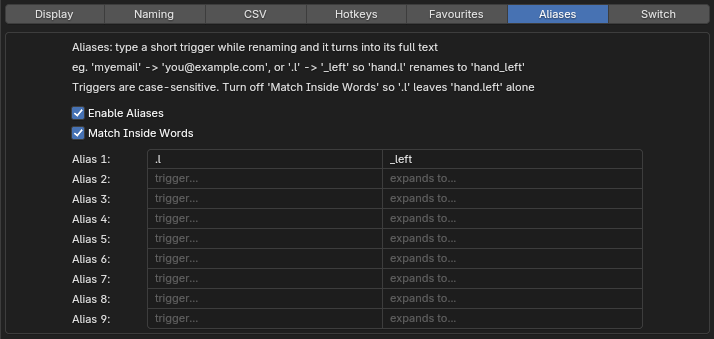
Aliases are short triggers that expand into longer text while you rename, eg. myemail → you@example.com, or .l → _left so typing hand.l renames to hand_left.
Set up to 9 aliases in Preferences > Aliases: type the trigger on the left and the text it expands to on the right.
- Triggers are case-sensitive.
- When several triggers could match, the longest one wins. Expanded text is never expanded again, and tokens in it (eg.
@) stay as typed. - Aliases expand in the text that becomes the name: plain names, prefix and suffix text,
+text@position, and the replace side of search and replace. They don’t expand in slash commands, the search side,{regex}, or the default post-filter. - Enable Aliases turns all aliases on or off.
Match Inside Words
Section titled “Match Inside Words”Match Inside Words (on by default) lets a trigger match even when it touches other letters or numbers. With it on, .l also changes hand.left into hand_lefteft.
Turn it off so a trigger that starts or ends with a letter or number only matches as a whole word: .l then matches hand.l and hand.l.001, but leaves hand.left alone.